


แคตตาล็อก


OMRON
NA Series
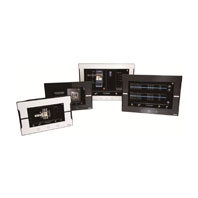
NA Series
-
-

Sysmac - the family that matches every requirement
As part of the Sysmac automation platform, Omron NA HMI transforms machine data into information, shows information and controls devices based on requirements at FA manufacturing sites.
The NA Series enables faster, more efficient control and monitoring.
With a widescreen displaying 16,770,000 colors, the HMI that is dynamic, intuitive and predictive makes industrial machines more attractive and competitive.
- Proactive operator/ machine relationship
- Design based on real applications and customer requirements
- Future-proof, scalable platform
- Allows quick reaction
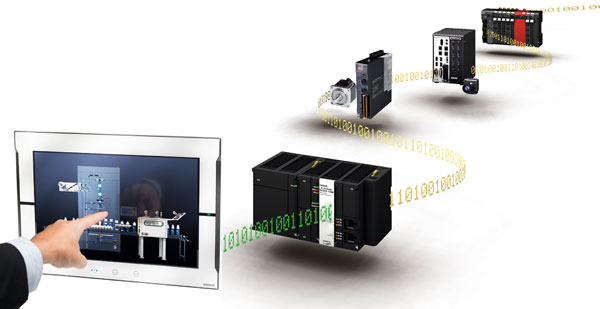
Integrating your world
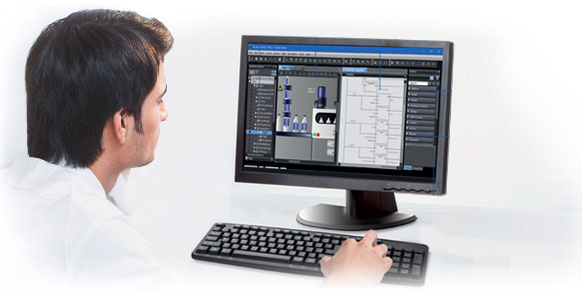
The Sysmac Studio is the centerpiece of the Sysmac platform, bringing together all areas of automation including: logic, motion, vision, safety and visualization.
The NA Series can be programmed alongside the other devices in one integrated project, which speeds up development.
ONE Tag Database
- Share NJ/NX/NY Controller Variables (Tags) in the machine interface application.
- Variables shared with controller reduce the time and complexity of programming.
- Define/use NA data structures in the machine interface application
ONE Learning, ONE Project
- Program your controller and safety systems
- Simultaneously program the NA Series as device in Sysmac Studio
- Program your whole machine in one project
- Work in a familiar way on all devices
Editors in ONE
Display both controller and HMI editors on one screen for quick design.
Safe and secure
Configure individual users with multi access levels
SIMPLE
- Clearly and quickly define the View
- Quickly change properties, animations, events and actions
- Powerful page editor to group objects
- Rotate, and resize - all with a simple click
BUT STILL FLEXIBLE
- Write your Visual Basic Script
- Extend the possibilities with Visual Basic
Test it in ONE
- Integrated testing through simulation of programs on controller and HMI at the same time. Checking your device operation at the same time makes debugging quicker and easier.
- Quickly test your device operations via the Simulator.
Features for speed
- Structured programming (through One software)
- Network device insight
- Vision setup
- Machine Controller troubleshooting
Keep Machine Running - Minimize downtime
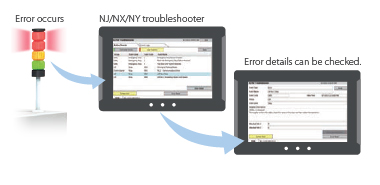
If something unexpected happens in your machine, it is crucial to identify the cause and solve the problem quickly.
As part of the Sysmac automation platform, the NA Series helps minimize machine downtime.
Troubleshooter
The Troubleshooter on the NA Series allows you to directly monitor and release the NJ/NX/NY Controller errors and events as well as the user-defined errors and events. There is no need for support software running on a PC.
Safety Monitor
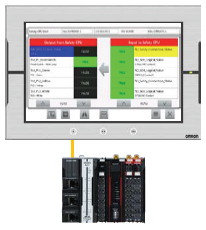
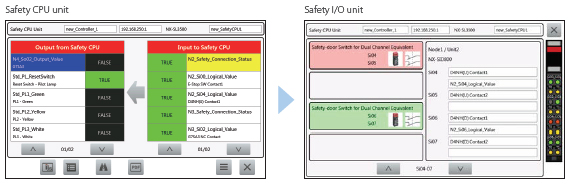
The NA Series can directly access safety CPU units and safety I/O units, which was previously impossible. There is no need to create any special screen to monitor their device variables and I/O settings.
The I/O Matrix Monitor displays device variables and external exposed variables used in safety programs, allowing you to see outputs (error state) and corresponding inputs (causal condition).
The Safety Input/Output Unit Monitor shows the ON/OFF status of safety I/O units and information on components connected to individual I/O terminals, enabling efficient monitoring of the entire system including safety components.
Logging and displaying operations
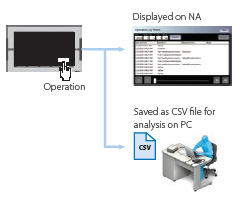
The system events that the NA Series detects and the operations that operators perform on the HMI can be logged.
The logs can be displayed on the NA Series, and can also be saved as CSV files to display them on your PC.
You can see who and when did what in a chronological order, helping you analyze errors.
Remote access
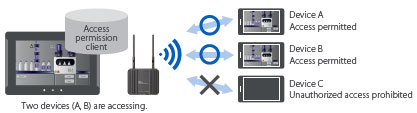
- You can view and operate the HMI installed at production sites from your tablet using Ethernet or WiFi.
- The access of remote devices can be managed and limited. This helps prevent accidental operation and information leakage, while securing accessibility.
Increased security
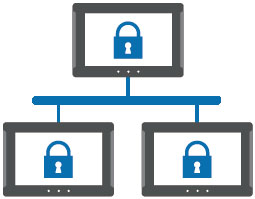
The NA Series can be configured to specific staff, with multi access levels with password protection.
This ensures authorised people interact with the machine.
Protecting your assets
- Your project can be password-protected along with other applications (Control and Safety).
- Transferring data can be protected (disable overwrite or theft).
Simple, but Flexible!
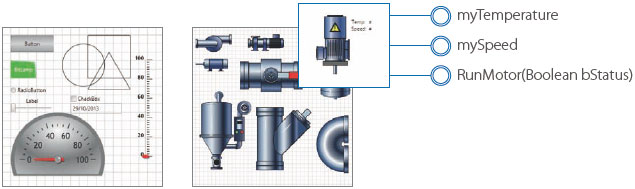
The NA Series gives the user the ability to design using IAGs (Intelligent Application Gadgets). IAGs simplify and accelerate the development process through structuring the project and enhancing reuse. From simple graphics to complex objects, you can make your own collections and share them between projects, like a Function Block.
Step 1: Machine Parts, the Visual
Using standard controls, or graphics from the machine parts collection, design your own IAG.
Add interface properties and methods to bring the object to life when reused.
Step 2: Extensible with Visual Basic
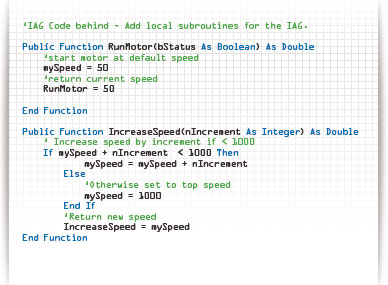
As well as many graphic IAGs, it is also possible to embed code within an IAG. The code can extend the possibilities of the gadget such as providing special device communication. Thanks to Visual Basic the standard functionality of the NA can be extended as required.
Step 3: Publish and Share
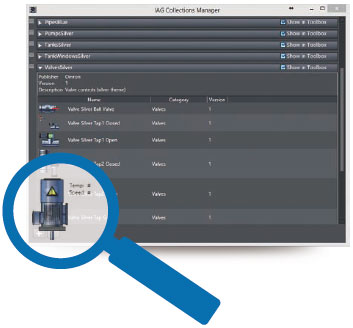
When the IAG is built and tested (using simulation) it can be published and the collection file distributed to be used again and again. Omron will release further IAG collections to extend the functionality of the NA Series.
A range of options that covers every need
NA5
Very stylish, very functional
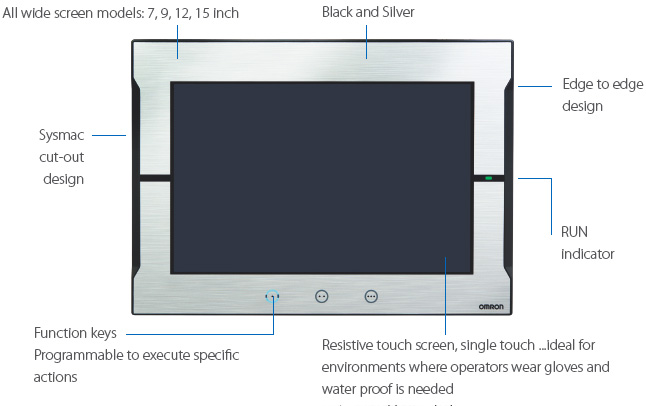
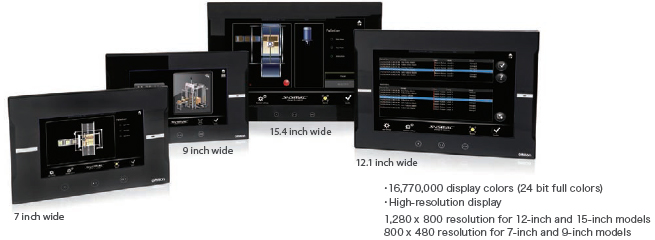
Widescreens displaying 16,770,000 colors
Soft-NA
HMI functions work on Windows to flexibly suit various on-site applications
Soft-NA provides equivalent functionality to NA5. This Windows application can be used with a wide variety of hardware including a large monitor and environment-resistant monitor, quickly meeting changing users’ needs. Soft-NA runs on an industrial PC or a PC, which allows you to run both your own data collection program and Soft-NA on a PC. Visualization of machine data helps reduce downtime.
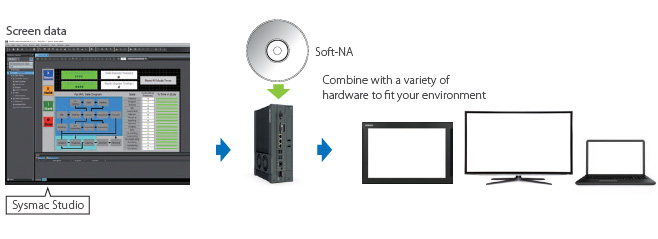
One Software, Sysmac Studio, manages all program assets
The advantages of the integrated development environment, such as sharing NJ/NX Controller variables and integrated Simulator, can be used on Soft-NA. Soft-NA also provides the same NJ/NX Troubleshooter as NA5, assisting in minimizing machine downtime. In addition, if you have screen data for NA5, it can be easily converted into screen data for Soft-NA.
SHOW your machine
Greater visualization
More than 16 million display colors (24-bit full color)
High-resolution bitmap graphics*1 and 67 different types of fonts can be used to create intuitive and good-looking screens. In addition, DXF files are supported to display CAD data. Even if the drawing is enlarged or reduced in size, it never loses quality.
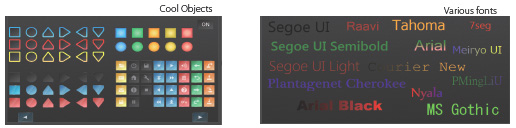
*1.Contact your Omron representative to obtain Cool Objects.
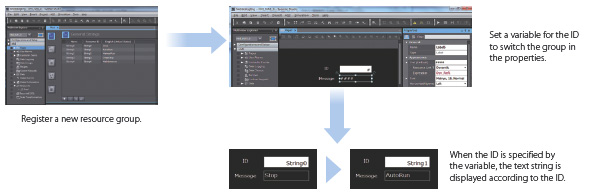
Indirect reference of text strings
A text string that is displayed on a label object (1 line) or a text box object (1 or more lines) can be switched by indirect reference. The machine operating status and alarm details can be easily displayed.
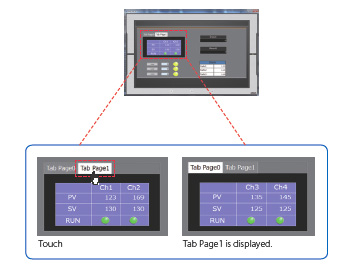
Tab control
A part of the screen can be used like a notepad.
Up to 64 tab pages for a Tab Control object can be created, and up to 10 Tab Control objects can be placed on a screen.
Change a tab page instead of a screen to monitor/change various data.
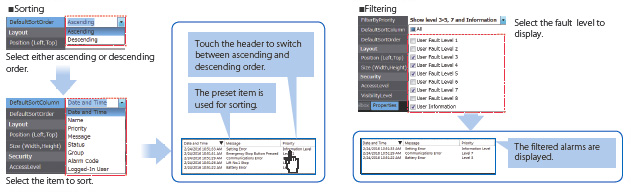
Setting, sorting, and filtering alarms
Alarms can be set easily, reducing time and effort required for creating alarm screens.

You can “sort” alarms by the preset item and “filter” by any keyword.
The error location can be quickly identified from a large number of alarms.
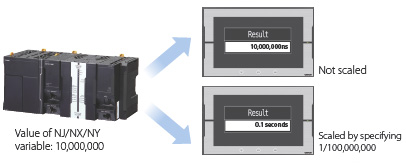
Scaling
Scaling can be set for Data Display/Data Edit objects and global variables.
Values of variables can be converted by specifying conversion expressions, which makes it easy to show data in the controller.
Broken-line graphs
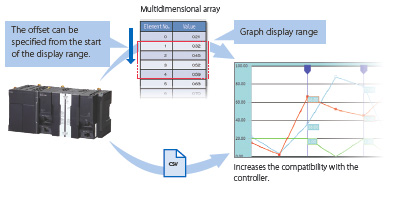
Data of variables and multidimensional arrays in the controller can be displayed as broken-line graphs. Broken-line graphs can also be created from the data in the CSV files saved in the SD card inserted in the NJ/NX/NY Controller by using subroutines (Visual Basic). You can specify the display range of large array data, such as operation log, by setting the offset value.
OPERATE your machine
Comfortable to use
Supporting Asian languages
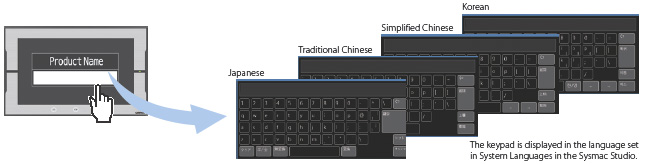
An Asian language - Japanese, simplified Chinese, traditional Chinese, or Korean - can be selected to use in the keypad of the NA Series.
The keypad language changes automatically when the language is changed in the language settings.
Local languages can be used to input the names of products when new recipes of the food packaging machine are added.
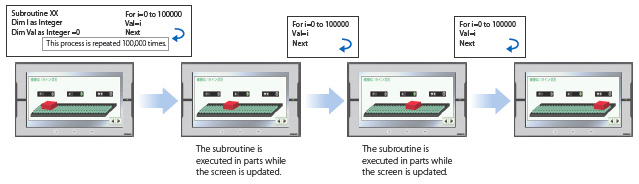
Executing a subroutine with multiple threads
Some subroutines require time due to repeated processing or waiting time.
Even such a subroutine can be executed during screen update, without affecting operability and visibility.
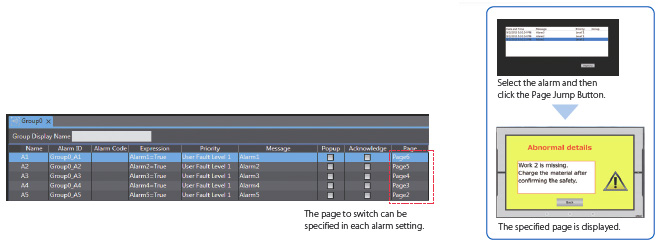
Page jump from user alarm
The page to switch can be specified in each alarm setting.
When an alarm occurs, you can check the troubleshooter screen by selecting the displayed alarm.
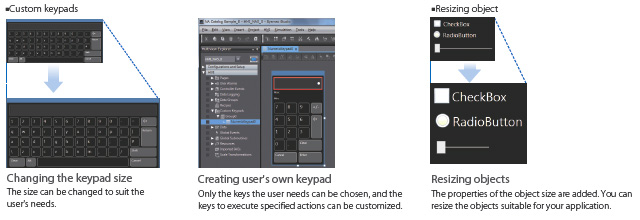
Customizing keypads and resizing objects
You can change the keypad size, choose only the keys you need, and customize the keys to execute specified actions.
Create your own keypad suitable for your applications.
The size of the Check Box, Slider, and Radio Button objects can also be changed. You can greatly improve the usability of your machine by enlarging these objects in size.
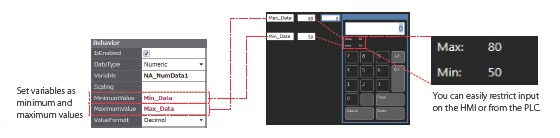
Dynamically changing upper/lower limit value
The upper and lower limit values can be dynamically changed by setting variables as maximum and minimum values of a Data Edit object. It is possible to restrict input according to the status of the machine.
Specifying a page number
By assigning any number to the page, you can easily switch pages from the PLC.
The previously required subroutine is no longer needed for this operation. This feature is particularly helpful when you use the CJ PLC in which pages are frequently specified by number.*1
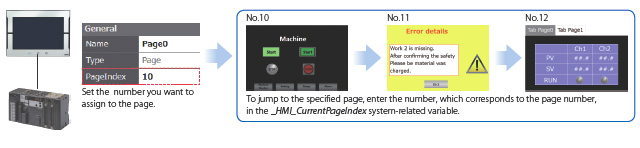
*1.This function is also supported in the NJ/NX/NY Series.
Usability: Design
Simple screen design
Integrated development environment
Sharing data between the NA Series and the NJ/NX/NY Series in real time on the Sysmac Studio increases design productivity.
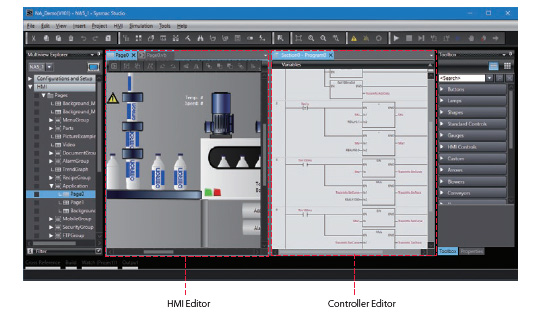
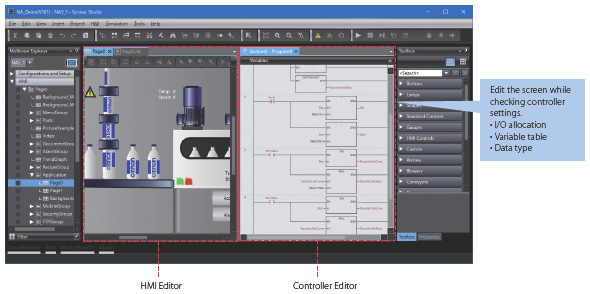
Displaying editors on one screen
The NA HMI Editor and NJ/NX/NY Controller Editor can be displayed on one screen.
This eliminates the need to switch between screens, making the design easier and faster.
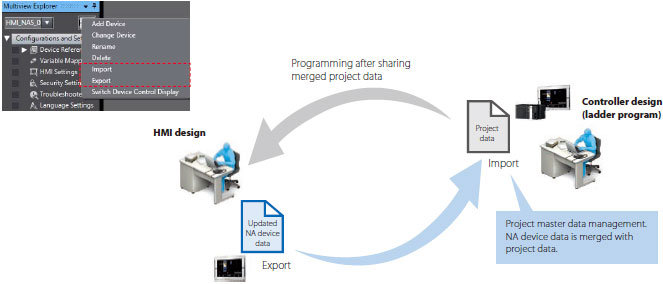
Concurrent development of ladder and HMI
Device data of the NA Series can be imported from and exported to the project file.
When the controller designer and HMI designer develop a machine concurrently, the screen data can be merged with the controller project.
Adding an object by drag & drop
Just drag a variable from the Ladder Editor in the NA Page Editor to add an object. The variable is automatically set in the property of the added object.*
This eliminates the need to create and allocate HMI variables, which facilitates design work.
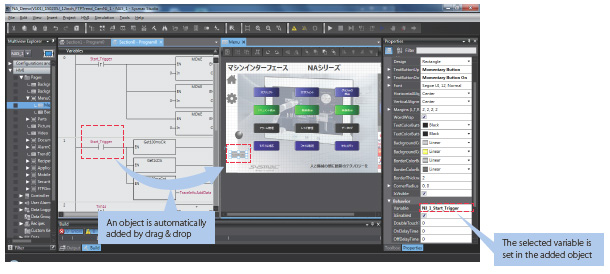
* When an input is selected, a Button object is added automatically.
When an output is selected, a Lamp object is added automatically.
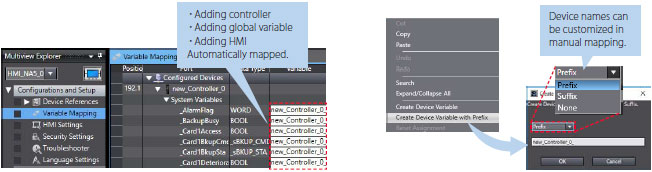
Improved mapping of controller variables to NA Series
- NJ/NX/NY Controller variables can be automatically mapped to the NA HMI. This improves design efficiency and ensures that all added variables are mapped.
- The device name generation rule can be customized in manual mapping. Variables can be mapped according to your desired rule.
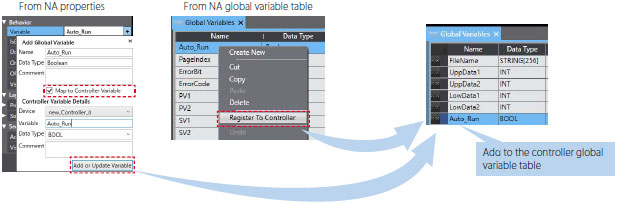
Easy to add NA variables to controller
Variables added to the NA HMI can be registered and mapped to the controller variable table from the properties for objects or the NA global variable table.
Going back to the controller global variable table to add variables is no longer required, saving your design time.
Resource management
Helps install your machines globally and modularize design.
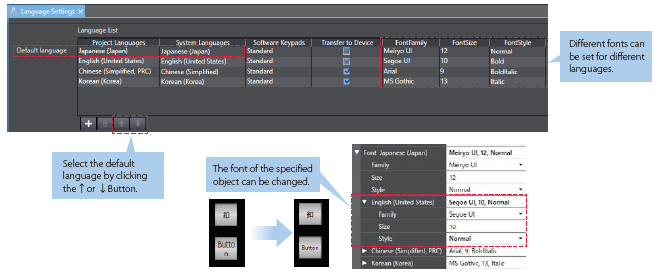
Language Settings
- Different fonts, sizes, and styles can be set for different languages. You can use your specified fonts or fonts suitable for local languages. Also the font of a specified object can be changed according to language.
- The default language can be changed. Properties and alarm groups, as well as screens, are displayed in local language, which makes design faster and easier.
Improved user alarm editing
- User alarms can be exported to and imported from Excel with the same layout as the user alarm table. The table can be sorted or filtered in Excel.
- Both the message and its details are exported to and imported from Excel. They are sorted according to the alarm ID, allowing you to edit text strings while you view all information.
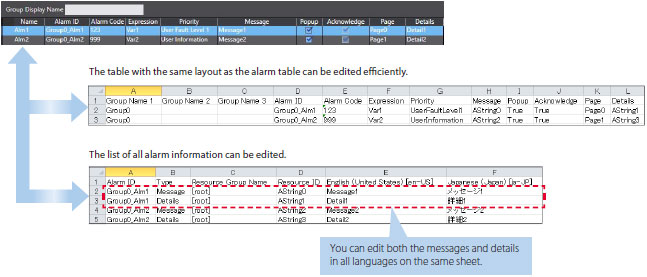
- Even if alarms are grouped, such as by machine module, all alarms can be imported and exported at once.
Improved resource editing
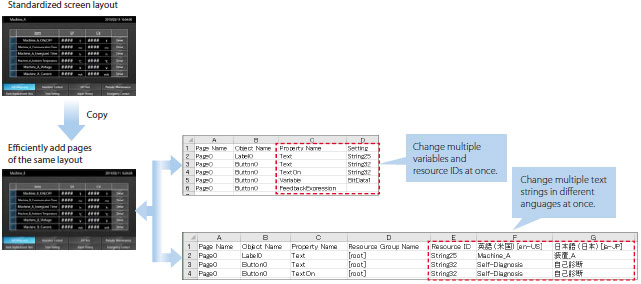
- In addition to entering a text string directly in properties, you can assign an ID first and enter a text string later. This resource ID-based management enables you to standardize screens first and then enter all text strings edited in Excel to suit machine specifications.
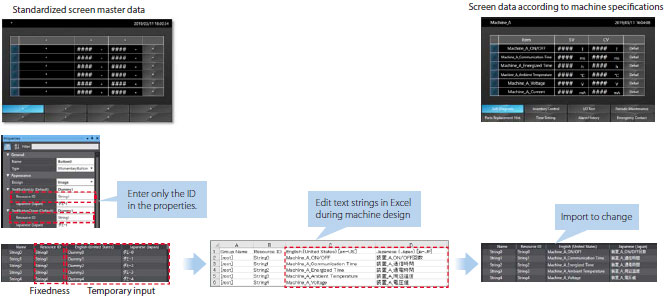
- Even if resources are grouped, such as by machine module, all resources can be imported and exported at once.
- Object properties (e.g., variables and expressions of buttons and lamps, resource IDs, text strings) in all languages on the same page can be imported and exported. Multiple properties can be edited at once in Excel, making resource editing easier, faster, and more precise.
Page Editor
Provides a simple GUI and a full suite of functionality to assist and streamline the design process.
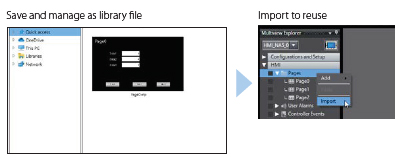
Importing and exporting pages
Pages can be saved as library files and reused individually in other projects.
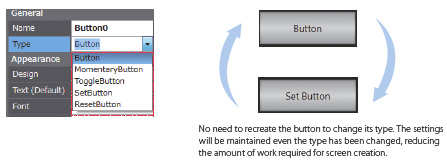
Changing type of button
The type of the Buttons including Set and Momentary can be changed easily in the properties whenever you want, even during or after designing the Button.
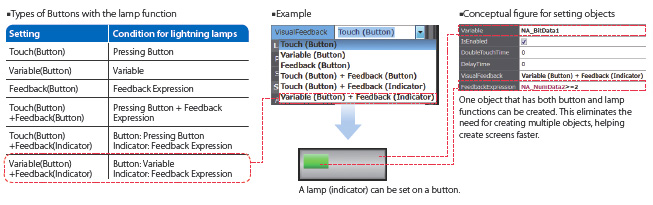
Buttons with the lamp function
You can easily create Buttons with the lamp function.
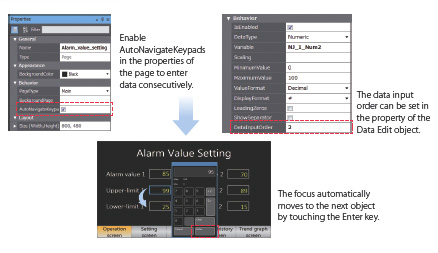
Data input order
The data input order can be set.
When numeric values are entered consecutively, the focus automatically moves to the next Data Edit object by touching the Enter key.
Input errors and input time can be minimized.
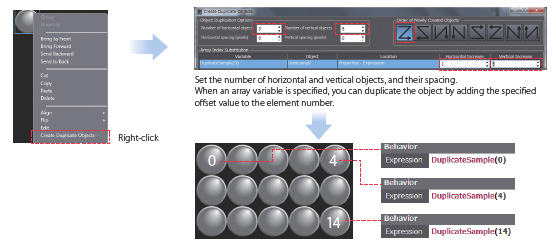
Creating duplicate objects
Based on one object, you can create multiple copies with the same appearance and settings by specifying an off set value for an array variable.
This makes screen creation faster and easier.
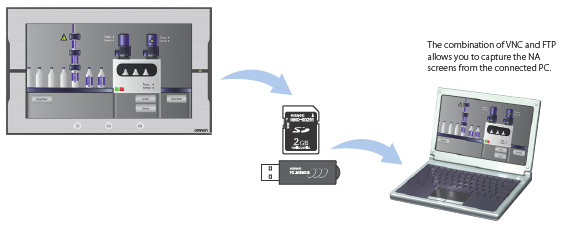
NA screen capture
The screens displayed on the NA Series can be captured and saved in the SD card inserted in the NA Series or the USB memory connected to the NA Series.
- When a screen of the NA Series is required to create a machine operation manual
- When the current screen is required to save as proof of a trouble
Supported format: PNG
Usability: Debugging
Easy and fast debugging in integrated development environment
Integrated Simulator
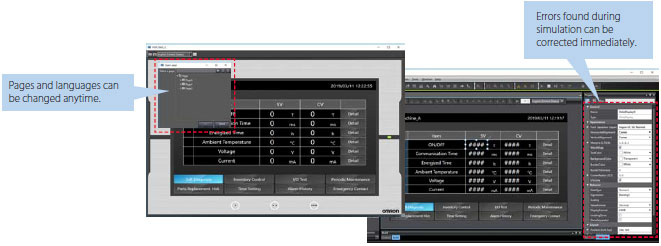
The NJ/NX/NY Controller Simulator and NA HMI Simulator can be displayed on one screen. You can quickly debug the controller program and the HMI application at the same time.
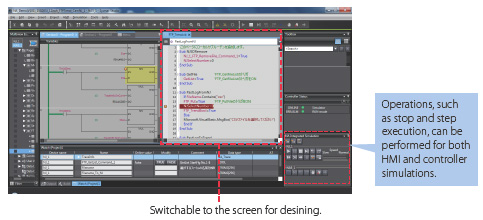
You can display the selected page and change properties without stopping the Simulator. Immediate debugging during simulation before building will prevent you from forgetting to correct errors and reduce the frequency of building.
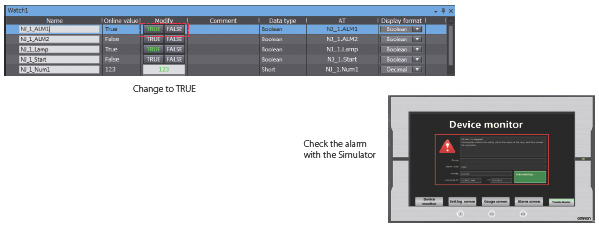
Watch Tab Page
The same GUI as the NJ/NX/NY Controller is used. Register the variable to monitor/change and then change its value on the Watch Tab Page to easily debug screens with the NA Simulator without the physical HMI.
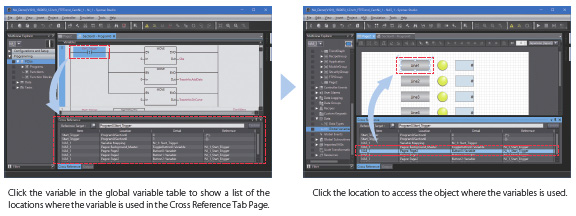
Cross references
The same GUI for the cross reference function as the NJ/NX/NY Controller can be used.
When a variable is clicked in the global variable table, a list of the locations where the variable is used is displayed in the Cross Reference Tab Page.
By clicking the location, you can access the object, subroutine, or ladder program where the variable is used across the entire project. This makes screen design and debugging quicker and easier.
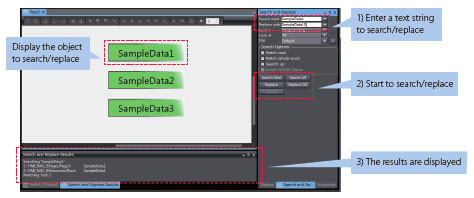
Search and Replace
You can search and replace text strings in all subroutines (Visual Basic), objects, and variables within a project.
It is quick and easy to edit and debug variable names and switch labels.
Application


